
Closed caption on Roku is a built-in accessibility feature that displays spoken dialogue and important audio cues as on-screen text while you watch movies, shows, and live content. It helps viewers who are deaf or hard of hearing, supports language learners, improves comprehension in noisy places, and even boosts focus when watching quietly. Roku lets you turn captions on or off, customize their style, and control them globally or per app — all in just a few clicks.
If you’ve ever wondered how to enable, adjust, or troubleshoot closed caption on Roku, you’re in the right place. Save this guide for later 📌
Why Closed Caption on Roku Matters More Than You Think
Closed captions are not just for accessibility anymore. They’re now part of modern viewing behavior.
People use Roku closed captions for:
-
Watching late at night without sound
-
Understanding fast dialogue
-
Following accents and dialects
-
Learning English or other languages
-
Watching in noisy homes
-
Improving focus and retention
-
Supporting kids and older viewers
-
Avoiding missed plot details
Think of captions as your second audio channel — but visual.
👉 Try watching one episode with captions on. You’ll notice extra details instantly.
How Closed Caption on Roku Works (Simple Explanation)
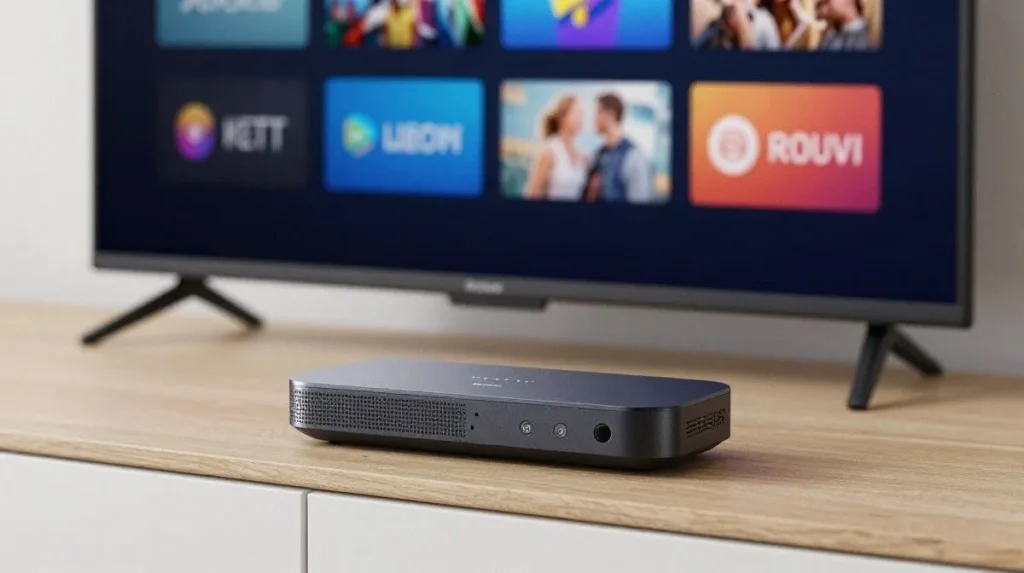
Roku doesn’t create captions itself. Instead, it reads caption data provided by:
-
Streaming apps (Netflix, YouTube, Hulu, Disney+)
-
Live TV channels
-
Cable input via Roku TV
-
Media files with subtitle tracks
Roku then overlays that text on your screen using your chosen caption style settings.
So there are two control layers:
-
Roku system caption settings
-
Individual app caption settings
Smart users check both.
How to Turn On Closed Caption on Roku (Universal Method)
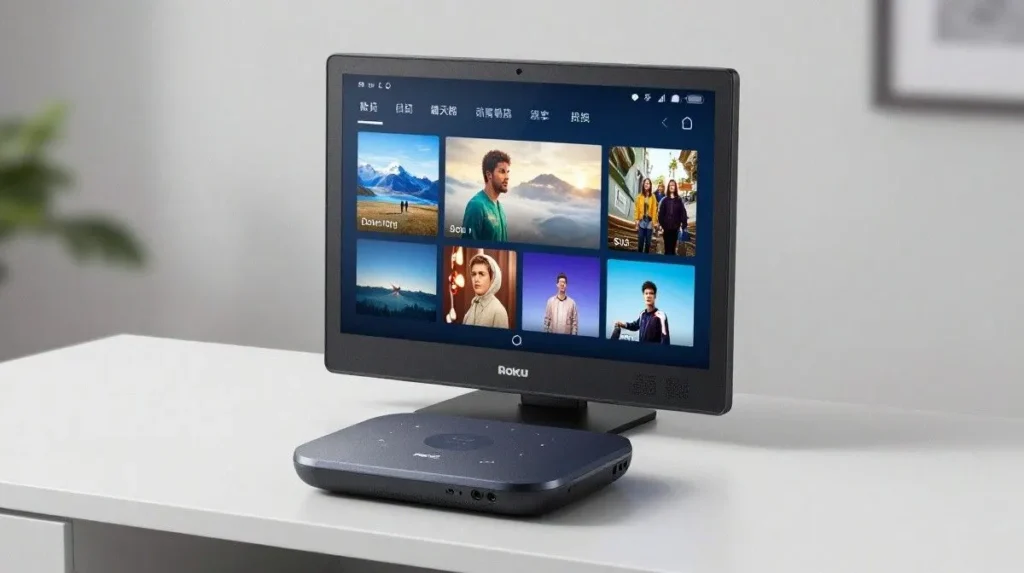
This method works across most Roku devices and Roku TVs.
Steps:
-
Press the Home button on your Roku remote
-
Go to Settings
-
Select Accessibility (or Captions on older models)
-
Choose Captions mode
- Select one:
-
On always
-
On replay
-
Off
-
On always
On always = captions show on all supported content
On replay = captions show only when you press replay
Off = captions disabled
Done ✅
Save this step list — you’ll use it often.
How to Turn On Closed Caption on Roku During Playback
Want captions only for one show? Easy.
While watching:
-
Press the * button on your remote
-
Open the Options menu
-
Find Closed Captioning
-
Turn it On
This works inside many streaming apps.
🎯 Quick control = better experience.
How to Customize Closed Caption on Roku (Font, Size, Color)
Roku gives strong caption style controls — great for readability.
Go to:
Settings → Accessibility → Caption style
You can change:
-
Text size
-
Text color
-
Background color
-
Background opacity
-
Window color
-
Font style
-
Edge style
-
Edge color
Best high-readability combo:
-
White text
-
Black background
-
Medium or large size
-
Solid opacity
Comfort = longer watch time 👀
Best Closed Caption Style Settings for Different Viewers
For Kids
-
Large text
-
Yellow color
-
Black background
-
Rounded font
For Seniors
-
Extra large text
-
White on black
-
Bold edge
For Language Learners
-
Medium text
-
High contrast
-
No transparency
For Night Watching
-
Soft gray text
-
Dark background
-
Medium size
Test what feels right. Comfort beats defaults.
Closed Caption on Roku vs Subtitles — What’s the Difference?
People often mix these up.
Closed Captions include:
-
Dialogue
-
Sound effects
-
Music cues
-
Speaker labels
Subtitles include:
-
Only spoken dialogue
-
Usually for translation
Example:
-
[Door slams] → caption
-
Hello → subtitle
Roku supports both depending on the content source.
Apps That Fully Support Closed Caption on Roku
Most major platforms support Roku captions:
-
Netflix
-
YouTube
-
Hulu
-
Disney+
-
Amazon Prime Video
-
Apple TV+
-
HBO Max
-
Peacock
-
Paramount+
-
Sling TV
-
Roku Channel
Inside each app, you may also find subtitle menus.
Double-check both places for best results.
How to Turn On Closed Caption on Roku for Netflix
Inside Netflix:
-
Start a show
-
Press Down on remote
-
Open Audio & Subtitles
-
Choose English CC (or your language)
Netflix captions override Roku style sometimes.
Tip: Netflix often includes better timing and formatting.
How to Enable Closed Caption on Roku for YouTube
YouTube uses its own caption system.
During playback:
-
Press Down
-
Select CC icon
-
Turn captions On
Some videos use auto-generated captions.
Quality varies — but useful.
How to Enable Closed Caption on Roku Live TV
For Roku TV antenna or cable input:
-
Go to Settings
-
Accessibility
-
Captions mode → On always
Live broadcasts must include caption signals.
Most news and major channels do.
Common Problems with Closed Caption on Roku (And Fixes)
Let’s solve the most common issues fast.
Captions Not Showing
-
Check Roku captions mode
-
Check app caption settings
-
Restart Roku
-
Try another show
Captions Out of Sync
-
Restart stream
-
Change channel
-
Update app
-
Reopen video
Wrong Language
-
Change subtitle track inside app
Captions Too Small
-
Adjust caption style size
Captions Cover Screen
-
Reduce text size
-
Change background opacity
Quick fixes save frustration 🔧
How to Restart Roku to Fix Caption Bugs
Restart clears caption glitches.
Method:
Settings → System → Power → Restart
Or unplug for 30 seconds.
Simple but powerful.
How to Update Roku for Better Caption Support
Old firmware = caption bugs.
Check updates:
Settings → System → System update → Check now
Updates often improve:
-
Caption rendering
-
App compatibility
-
Accessibility features
Keep it fresh 🔄
Closed Caption on Roku for Language Learning
Captions help language learners massively.
Benefits:
-
Word recognition
-
Pronunciation matching
-
Context understanding
-
Faster vocabulary growth
-
Accent familiarity
Watch with captions + audio together.
Great for English learners 📚
Closed Caption on Roku for Focus & Memory
Many viewers remember more with captions on.
Why?
-
Dual input (audio + text)
-
Reduced distraction
-
Better retention
-
Stronger comprehension
Especially helpful for:
-
Fast dialogue shows
-
Documentaries
-
Educational content
Try it for study viewing.
Best Viewing Situations for Closed Caption on Roku
Captions are perfect when:
-
Baby is sleeping
-
Room is noisy
-
Volume must stay low
-
Accents are heavy
-
Dialogue is fast
-
Audio quality is poor
-
Watching in public space
Captions = control + clarity.
Caption Style Mistakes to Avoid
Avoid these readability killers:
-
Transparent background on bright scenes
-
Tiny text size
-
Fancy script fonts
-
Low contrast colors
-
Fully transparent window
-
Neon color combos
Readability first. Style second.
Engagement Psychology: Why Viewers Prefer Captions Now
Modern viewers are multitaskers.
Captions help when:
-
Checking phone
-
Eating
-
Chatting
-
Studying
-
Watching casually
Text anchors attention.
Platforms report higher watch completion with captions on — even for hearing users.
Brains love reinforcement 🧠
Closed Caption Optimization Framework (Easy Method)
Use this 4-step caption comfort framework:
C L E A R
C — Contrast high
L — Large enough text
E — Edge/border enabled
A — Avoid transparency
R — Readability tested
Adjust once → enjoy forever.
Accessibility Benefits of Closed Caption on Roku
Captions support inclusive viewing.
Helpful for:
-
Deaf viewers
-
Hard of hearing users
-
Cognitive processing support
-
Neurodivergent viewers
-
Elderly users
Accessibility is not optional — it’s essential ❤️
Brand New Caption Ideas (for videos, reels, or social posts):
- “Roku users, stop guessing! ✅ Here’s the 2026 way to turn on Closed Captions in under 30 seconds 🔥”
- “No more missing dialogue! 🎥 How to fix Closed Captions on Roku TV this year 👇”
- “Late-night binge watching? Enable Closed Captions on Roku like a pro in 2026 😴📺”
- “Closed Captions not showing on Roku? This quick fix changed everything! ⚡ #RokuTips”
- “2026 Roku hack: Customize your Closed Caption size, color & font instantly ✨”
- “From zero to subtitles in seconds ⏱️ Closed Caption on Roku made simple”
- “Why your Closed Captions on Roku keep disappearing (and how to stop it forever) 😤”
- “Family movie night just got better! Easy Closed Captions Roku setup for everyone 👨👩👧👦”
- “Unlock hidden Roku features: Master Closed Captions in 2026 like an expert 🚀”
- “Struggling with audio? Turn on Closed Captions on Roku RIGHT NOW – best decision ever! 💯”
FAQ: Closed Caption on Roku
How do I turn on closed caption on Roku?
Go to Settings → Accessibility → Captions mode → On always.
Why are captions not working on Roku?
Check both Roku settings and app subtitle settings.
Can I change caption size on Roku?
Yes — in Caption style settings.
Do all Roku apps support captions?
Most major streaming apps do.
Are Roku captions free?
Yes — built-in feature.
Can I change caption color?
Yes — text and background color can be customized.
Why are captions delayed?
Stream sync issue — restart video or device.
Does Roku support multiple languages?
Yes — if the app provides them.
Is closed caption same as subtitles?
No — captions include sound cues.
Can I enable captions only on replay?
Yes — choose On replay mode.
Pro Tips for the Best Closed Caption on Roku Experience
-
Test caption style on dark + bright scenes
-
Use medium-large size minimum
-
Keep black background for clarity
-
Update Roku monthly
-
Learn each app’s subtitle menu
-
Restart device if timing feels off
-
Save your favorite style preset
Small tweaks = big comfort.
Final Thoughts: Make Closed Caption on Roku Your Secret Viewing Superpower
Closed caption on Roku isn’t just an accessibility feature — it’s a smart viewing upgrade. It helps you catch every word, understand every scene, and stay fully connected to the story — whether the room is loud, the dialogue is fast, or the volume must stay low.
Take two minutes today and turn it on. Customize it. Test it. Feel the difference.
And once you find your perfect caption style — stick with it and enjoy stress-free streaming forever 🎬
If this guide helped you, save it for later and share it with someone who uses Roku ❤️
